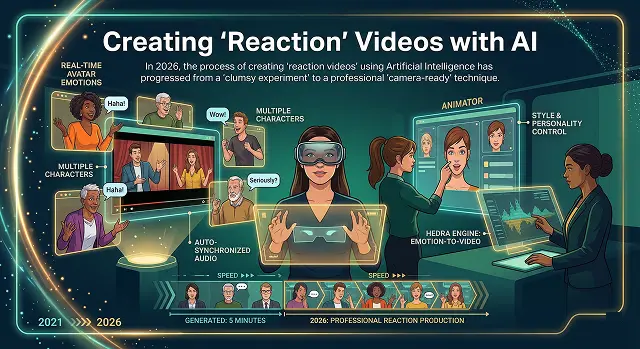
In 2026, the process of creating 'reaction videos' using Artificial Intelligence has progressed from a 'clumsy experiment' to a professional 'camera-free' workflow. Gone are the days when you required a ring light, a high-end camera and a 'good hair day' to produce top quality commentary.
Let me now explain this to you using non-technical terms.
1. What is an "AI Reaction Video"?
Traditionally, you would sit in front of a camera, watch a clip and record your face from your perspective. However, when using AI, you substitute your real self for an AI Avatar/Digital Twin of yourself (or some kind of stylised character).
- Look: The AI Avatar that looks the same as you but is displayed on-screen in the corner of the screen as a visual representation of yourself.
- Voice: When you write down your thoughts, the Artificial Intelligence will convert them into audible speech in the exact same voice as your cloned voice/AI avatar, matching perfectly while speaking to how you appear visually on-screen.
- Acting: AI mimics human behavioural/physical responses (such as extreme surprise, laughing or nodding, etc...) when you provide the AI with a script that indicates your anticipated physical response when viewing the video.
2. Why people are doing this (The "Human" Benefit)
- Consistency: You can "film" 10 videos in an hour by just typing scripts, avoiding "creator burnout."
- Language Switching: You can instantly translate your reaction into 30+ languages. Your AI twin will speak fluent Japanese or Spanish with your same voice and matching lip movements.
- Privacy: You can be a "faceless" creator while still having a "human" presence on screen.
3. The "Human-in-the-Loop" Scripting
AI can write a script, but AI-written scripts are often boring and "too nice." To make a reaction video that actually gets views, you need to inject personality.
- The "Pattern Interrupt": Don't just have your avatar nod. Start with a hot take. Instead of "I like this video," try "I have five reasons why this is a total disaster."
- Prompting for Emotion: When using tools like HeyGen or Synthesia, you don't just type text. You use Emotion Markers.
- Example: [Scoff] I can't believe they spent $2M on this. [Lean Forward] Look at the detail on the left though.
- The AI interprets these tags to change the avatar's body language.
4. Advanced Audio: The "Voice Clone" Secret
The biggest "tell" that a video is AI is a robotic voice. Pros now use a two-step process:
- Clone your voice: Use ElevenLabs to create a "High-Fidelity Professional Clone." This captures your specific breathing patterns and "ums/uhs."
- Speech-to-Speech: If you aren't a great voice actor, you can record yourself speaking the lines casually into your phone, then have the AI "overlay" your professional cloned voice onto your recording. This keeps the natural human rhythm but makes you sound like a pro broadcaster.
| ID | Reaction Stage | Implementation & Sync Logic |
|---|---|---|
| RV-01 | Source Analysis |
The AI scans the "Primary Video" for high-intensity audio peaks (screams, laughs, explosions) to timestamp reaction triggers. Audio Peak Detection |
| RV-02 | Expressive Keyframing |
Matching the character's eye-widening or jaw-dropping animations to the exact millisecond of the source video's climax. Biometric Sync |
| RV-03 | Gaze Shift Mapping |
Simulating the character "looking" toward the corner of the frame where the reaction content is displayed. Spatial Awareness |
| RV-04 | Vocal Commentary |
Generating script-based interjections like "Woah!" or "No way!" that blend into the source audio stream naturally. Smart Interjection |
| RV-05 | Picture-in-Picture Render |
Final compositing of the 3D character and the source video into a single high-fidelity "Reaction Format" (9:16 or 16:9). Automated Compositing |
Submit Your Application
Complete the form below to initiate your AI video generation project.
5. Avoid the “Uncanny Valley”
If something appears to be nearly human but it’s not quite, people may feel an unsettling sensation known as “the uncanny valley.” To help alleviate this sensation, there are certain things you can do:
- Keep it brief: AI-generated avatars can be remarkable when utilized in 60-second TikTok videos. However, people will start to notice when an AI-generated avatar’s eyes are blinking mechanically after 20 minutes or so into the viewing process of a documentary-style film.
- Use background noise/human noise: If you add “room tone” or a very low-fi ambient music and incorporate that into your editing tools (like CapCut or Premiere), the audience will not feel like they are watching and hearing an AI-generated voice without the necessary “life-like” background noise.
- Eye contact: Eye contact from Captions’ Eye Contact AI can be achieved when you create AI-generated avatars. The AI-generated avatar will look directly at the “lens,” even when the base rendered model does not align.
6. Ethics (Avoid being banned)
As of 2026, YouTube, TikTok, et cetera, will have a requirement to label anything created by an AI as “AI-Generated”.
- Increased transparency: If you upload a video generated by AI but you do not check the “Altered Content” box when you submit your video, the upload algorithm may evaluate and/or limit the reach of your video.
- Copyrighted material: Just because an AI-created video has been generated in response to a request made to an AI does not mean that you own the copyright to create that material. You are still expected to regard “fair use” (incorporate commentary) and not simply re-create the original video and use good, fair business practices.
7. Designing the "Environment"
- Creating the atmosphere or environment is critical for a successful shooting scene. No one wants only to see content with a hovering head; we want to capture the wow factor of your talents by putting them into an actual setting (or set) that makes sense for what they're doing!
- Virtual studios are available in most of the AI video platforms on the market today. Many users have started to utilize tools such as Midjourney or Adobe Firefly to create dream gaming rooms or minimalist podcast studios.
- To provide a level of reality, many professionals apply Gaussian blur to the background of their video in an effort to mimic the appearance of a real camera lens of $f/1.8$ ; by doing so, the AI avatar being created will "pop" or stand out.
Creating "Reaction" Videos
Turn your AI characters into the ultimate reactors for your social feeds.
It's all about side-by-side editing. Generate your character in Hedra with a reaction script (e.g., "Wait, did you see that?!"). Then, use an editor to overlay your character in a small window over the video they are "watching."
Yes! For the best result, use Emotional Cues. Add words like "wide-eyed surprise" or "jaw-dropping shock" to your prompt. The AI will adjust the facial muscles to match that high-energy reaction vibe.
The best way is to time your audio. Record your reaction audio first (gasps, laughs, etc.). When you upload that to Hedra, the character will move their face exactly when you made those sounds.
Try using camera angles in your prompt. Ask for a "slight side profile." When you position the reaction window on the edge of the screen, it will look like they are staring right at the action.
It’s all about anonymity and creativity. You can have a talking cat or a historical figure react to modern memes, allowing you to create viral content without ever showing your own face.
The secret is in the audio pauses. Record a sharp intake of breath with a long pause afterward. The AI will hold that surprised expression during the silence, creating a perfect comedic beat.
Absolutely! Describe the setting as "dark room with neon RGB lighting." This makes the character look like a real streamer in a physical space rather than a void.
For TikTok or Reels, go with 30fps or 60fps. When upscaling, select "Smooth Motion." This ensures quick head movements in shock don't look blurry on mobile screens.
Use punctuation like a pro. Multiple exclamation points (!!!) or typing in ALL CAPS tells the AI to raise the pitch and energy. "OH MY GOD!!!" sounds much more authentic than a lowercase version.
Yes! Prompt your character against a solid green background. Use "Chroma Key" in your editor to remove it and place your character anywhere—inside a game or "inside" the video they react to.
Ready to try Hedra?
Transform your ideas into cinematic video in seconds.