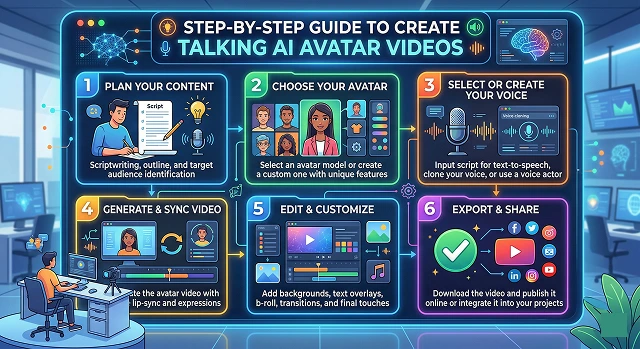
An AI talking avatar today is no longer just for Hollywood! By 2026 you will have the ability to create your own talking avatar from ANY web browser in approximately 10 minutes.
In this article we will provide you with the steps needed to accomplish this in a very simple, easy to understand format that does not require an engineering or technology background.
Phase 1: Selecting your “face” / visual
When you do create an avatar you will want to ensure that it has an image. You have 3 options to choose from:
- Your Own Photo: If you want your avatar to represent your business or as a “how-to” tutorial you will want to use a high quality front facing photo with a neutral facial expression and have good light behind you for a clean and clear photo.
- AI Generated Character: If you would like to use an AI generated character such as “business news anchor” or “3D Pixar style explorer”. You can do this by using tools such as Midjourney or DallE 3.
- Stock Character / Avatar: Most of the platforms that will allow you to create avatars will have a library of stock avatars that you can select from (e.g. Synthesia and HeyGen are both good examples of platforms that provide a library of avatars).
Phase 2: Select A Website
Here are some of the best websites to use in 2026 depending on the amount of money you have available as well as how realistic you want to make your project.
- HeyGen: The most realistic set of people that can move naturally.
- Synthesia: The best option for corporate training or to have a "professional spokesperson".
- D-ID: An easy way to animate old photographs or paintings fast.
- Fliki / Media.io: Fast and low-cost ways to create video clips for social media.
Phase 3: Building Step by Step
Step 1: Select an Image
- In your appropriate tool after logging into it, create video, upload avatar.
- Tip: Make sure you can see the entire face clearly without the face being partially blocked by hair or glasses so that AI can properly map the mouth movement to the sound.
Step 2: Choose Script or Audio
- You can use text-to-speech, where you would enter a script directly into the tool and select from a wide variety of AI generating voice, such as "happy college student" or "serious teacher."
- You can also upload a voice mp3 to use for the Avatar's speech. Some high-end tools let you clone your voice.
Step 3: Customize the Atmosphere
- In the editor window, if available, you'll be able to do things such as change the background from green screen to an office, futuristic city, or solid color.
- You can also create specific emotion/gesture combinations in many of the applications, including HeyGen: (For example: gesturing to express emphasis, selecting "happy" or "serious" for the Avatar's facial expression.).
Step 4: Create & Refine
- Press the "generate" button and the data will be analyzed; the AI will synchronize the lips to appropriately match the sounds you've chosen.
- Processing time can vary; however, 1-5 minutes is reasonable depending on the video U.
Phase 4: Final Edits
After exporting the video, you will want to bring into a normal editor such as CapCut or Premiere.
- You need to Caption your video for each social media post.
- You'll need B-Roll inserted in order to mask the avatar and keep the viewer engaged.
- You'll also want to add some music to create atmosphere throughout the video.
Top Tools for 2026 Comparison
AI Avatar Solutions · Expert Guide
| Goal | Best Tool | Why? |
|---|---|---|
| Highest Realism | HeyGen | Best body language and "Digital Twin" cloning. |
| Business/Training | Synthesia | Massive library of professional actors and 120+ languages. |
| Social Media Speed | InVideo AI | Generates the script, avatar, and B-roll in one prompt. |
| Artistic/Historical | D-ID | Best at making paintings or old photos talk. |
| Cinematic Control | Runway | Best for directing specific camera angles and background motion. |
Submit Your Application
Complete the form below to initiate your AI video generation project.
The "DNA" of Your Avatar: Visual Foundation
By 2026 there will be three distinct tiers of avatars to suit your needs for "realism" in Avatars:
- The Instant Photo Avatar: Best for quick social clips. Tools like D-ID or YouCam AI Pro take a static 2D photo and use "mesh-warping" to animate the mouth and eyes.
- The 3D Generative Avatar: Tools like Synthesia (Express-2) or HeyGen use "NeRF" (Neural Radiance Fields) technology. These aren't just flat photos; they are digital puppets that can tilt their heads, shrug, and use hand gestures that match the emotion of your script.
- The Custom Clone (The "Digital Twin"): You record 2–5 minutes of yourself talking to a camera once. The AI (via HeyGen or Captions.ai) learns your unique facial ticks, how you blink, and how you move your hands. From then on, you just type text, and "Digital You" says it.
Advanced Scripting & Voice Syncing
Don't just type text; you need to "engineer" the performance.
- Script: Use an AI writer to format your script. Example: ChatGPT or Pictory's built-in assistant.
- Voice Cloning: Instead of using generic robotic voice, use either ElevenLabs or Lovo. Clone your own voice and/or choose Celebrity voice named Professional Narrator. These voices will have “breath sounds” and “vocal fry” for full human quality by 2026.
- Language Translation: Platforms like HeyGen now offer Visual Translation. You can record a video in English, and the AI will swap your voice to fluent Japanese and change your actual lip movements to match the Japanese words.
Post-Production: The "Humanizing" Layer
Raw AI video can sometimes feel "too perfect" (the Uncanny Valley). To fix this:
- Add Captions: Use CapCut or Submagic. Use "Dynamic Captions" that pop up word-by-word.
- Sound Effects: You can put in an extremely low volume "Room Tone" or background music (if there's no background noise, the AI voice will seem "fake").
- Color Correction: Use a subtle filter on the entire video so that the avatar and its background appear to have been recorded from a single camera.
Step-by-Step Guide: Talking AI Avatars
Follow this simple roadmap to go from a blank screen to a viral-ready talking video.
Start in the Character Creator. Upload a clear photo or use the "Forge" to describe someone new. For the best results, ensure your character is looking straight ahead with their mouth closed—this gives the AI a perfect canvas.
Choose between Text-to-Speech or Audio Upload. Record yourself for maximum emotion, or pick an AI voice for speed. Use punctuation like "..." for natural pauses to make the AI sound more human.
Simply hit Generate. Our AI analyzes the syllables in your audio and matches them to the facial landmarks of your character. It happens in the cloud, so you don't need a powerful computer.
Yes! Use Emotional Markers. In your prompt, describe the mood (e.g., "joyful" or "serious"). The AI handles natural blinks automatically, but your keywords tell it exactly how to emote.
Hit Download once you're happy with the preview. Choose from 720p to full 4K render. Your video saves as an MP4, perfectly compatible with Instagram, TikTok, and YouTube.
For a professional look, generate your character with a solid green background. Then, use the "Chroma Key" tool in CapCut or Premiere to place your talking AI anywhere—from a futuristic spaceship to a cozy podcast studio.
Yes! Most people watch social media videos on mute. Use an auto-caption tool to add bold, colorful text. It keeps the viewer engaged and ensures your message is delivered even without audio.
This usually happens if the original image was too blurry. To fix this, use a high-resolution PNG (at least 1024px). If jitters persist, use our "Smooth Motion" toggle in export settings to stabilize head movements.
Don't show the talking head for the entire duration. Every 5-10 seconds, cut to relevant B-roll that illustrates your point. Add a low-volume background track to "glue" the scene together for a professional feel.
Start with a Hook. In the first 3 seconds, your character should ask a question or say something surprising. Combined with a clean 4K export, a great hook is the fastest way to trigger the algorithm!
Ready to try Hedra?
Transform your ideas into cinematic video in seconds.