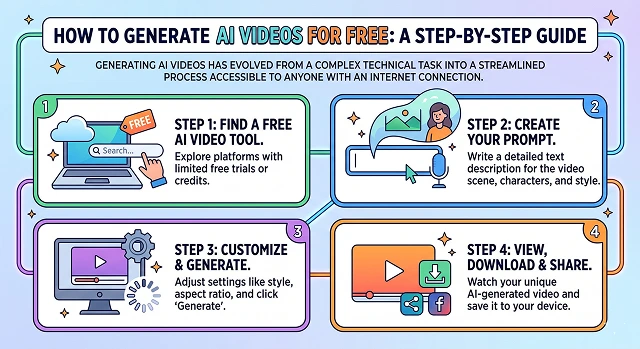
Generating AI videos has evolved from a complex technical task into a streamlined process accessible to anyone with an internet connection. By 2026, generative AI (GenAI) models like Sora, HeyGen, Synthesia, and Google Veo 3 have significantly advanced the ability to create realistic audiovisual materials from simple text or image prompts (Kaya et al., 2025; Verma, 2025).
Step 1: Choose Your Free AI Tool
Most modern platforms offer a "freemium" model where you get a certain number of credits or minutes for free each month.
- For Cinematic Scenes: Use Luma Dream Machine or Runway Gen-2/Gen-3. These are excellent for turning text descriptions into high-quality film clips.
- For Talking Avatars: Talking avatars can be created using either HeyGen or Synthesia, both of which give you the option of selecting a digital human (avatar) to narrate your script (Zhang, 2024; Contreras, 2024).
- For Educational/Social Media: Use Canva Magic Media or InVideo AI. These provide templates and automatically find stock footage to match your script.
Step 2: Define your concept using AI generated videos (the prompt)
In order to create videos through artificial intelligence, it is vital to provide the AI with a comprehensive prompt—an abbreviated directive which highlights the requested creation(s). In order for your request to achieve maximum results you will want to take as much care as possible to thoroughly identify detailed requirements for the following aspects of your request:
- Subject: (for example, "A golden retriever space helmet")
- Action: (ex. "Floating in a nebula")
- Style: (e.g. "Cinema lighting, 4k pixel, hyper-realistic, Pixar")
- Movement of the camera: (e.g "slow zoom in" or "Pan the camera left")
Step 3: Generate the Video
Once you have your prompt ready:
- Text to Video: Enter your prompt into the generator to produce an AI generated image track with diffusion models. A random pixel field will be created at random and then all noise will be removed from the image noise and turned into a fully developed moving image (Shoitan et al., 2026; Rombach et al., 2022)
- Image to Video: Provide an image you would like converted into a moving video (for example, one you created with either Midjourney or DALL-E) to the generator along with description on how you would like it to be animated. When creating an animated video from a static image multiple data types will often yield superior results to just using text to animate (Singer et al., 2023).
Step 4: Refine and Edit
Initial AI results may contain "hallucinations" (unnatural movements or distorted textures).
- Iterate: Most apps will let you either "mix" or "grow" the video. If the motion seems odd, then adjust the "motion scale" or "seed" value.
- Sync audio: If you want to animate a character speaking, you can record your voice or use one of the AI text-to-speech (TTS) engines in order to have the lips move in correlation to your words.
Step 5 - Final Review & Export
Be sure to double-check your content's safety and accurate representation prior to sharing.
- Final review: An individual should evaluate the overall alignment between audio and visual (in addition to repurposing any generative ai videos) after an individual has created any type of video format that conveys health information or other types of information.
- Download: If you're happy with the video, export it, but keep in mind that free versions may contain a watermark or have a maximum output of 720p.
Top Free AI Tools for 2026
Feature Comparison · Free Tier Benefits
| Tool | Free Tier Perk | Best For... |
|---|---|---|
| Kling AI 3.0 | 66 credits daily (refreshes every 24h) | Realistic physics (hair, water) and 4K quality. |
| Luma Dream Machine | 30 free videos per month | High-speed cinematic clips and "Image-to-Video." |
| CapCut AI | No watermarks on free exports | Social media, TikToks, and quick "Script-to-Video." |
| Pika 2.5 | 80 monthly credits | Creative "Pikaffects" (melting, crushing, inflating objects). |
Submit Your Application
Complete the form below to initiate your AI video generation project.
The 2026 "Free" Power Players
In the current landscape, these four tools offer the best balance of quality and free access.
- Kling AI 3.0: The current king of realism. It gives you 66 free credits daily, which is enough for about 2–3 high-quality video clips every single day.
- Luma Dream Machine (Ray 3.14): Known for cinematic "vibe." It typically offers 30 free generations per month. It’s the best choice for lighting and complex camera movements.
- Synthesia AI Playground (Veo 3): Google’s "Veo 3" model is now available here. It’s perfect for cinematic realism with integrated audio (engines sounds, wind, music) that actually matches the video.
- Runway Gen-4.5: Offers a one-time allotment of 125 credits for new users. Best for "VFX" style work and its famous "Multi-Motion Brush."
Finalizing Your Video Project
When creating the production you want to assemble together the video segments.
- CapCut (Free): This is the best app for integrating your clips together, adding auto-captions, etc.
- Retouching: If your free AI video has an unclear appearance (720p), use the free HD or retouch feature in CapCut to give it a clearer appearance.
- Sound Effects: In 2026, programs such as ElevenLabs will allow you to generate specific sounds via limited free credits (i.e., the lightsaber sound effect) for use in your video.
The "Free User" Strategy for 2026
To maximize your output without paying:
- Daily: Use your 66 credits on Kling AI for your main characters and action.
- Monthly: Save your Luma credits for "Hero Shots"—the big, beautiful opening or closing scenes of your video.
- One-Offs: Use Runway Gen-4.5 only when you need to fix a specific part of a video using their advanced editing brushes.
How to Generate AI Videos for Free
Master the art of creating high-end video content without spending a rupee.
Yes! We offer a Free Forever Tier that provides daily credits. While paid plans offer faster rendering and 4K exports, the free tier is perfect for learning the ropes and creating social media clips at no cost.
Beyond the daily refresh, you can earn bonus credits by participating in community challenges, referring friends, or sharing your creations on social media. It’s our way of rewarding creators who help us grow.
Free tier videos include a small, discreet watermark. To remove it, you can upgrade to a pro plan, but many users find that for memes or personal projects, the watermark doesn't distract from the quality at all.
Yes! Many creators use the free tier for Faceless YouTube Channels. For commercial monetization, some platforms prefer unbranded content, so upgrading is a great move once your channel starts growing.
The secret is Lighting and Prompting. Since free tiers may have lower resolution, using high-contrast lighting prompts (like "Rim Lighting") makes the character pop and look sharper than a flat generation.
Free clips are typically 5–10 seconds. A "pro move" is to generate multiple short clips and stitch them together in a free editor like CapCut to create a seamless full-length production.
No! You can get started with just an email. We believe in zero-friction creativity, so you can start animating your first character within seconds of landing on our page.
Ready to try Hedra?
Transform your ideas into cinematic video in seconds.