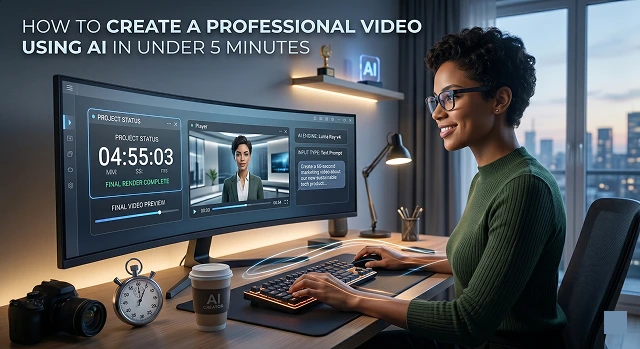
Making a video that looks good in less than 5 minutes was once a dream, but by 2026 it’s possible because of the way technology has improved; typing is now like filming.
To make the process faster than ever, use a script-to-video workflow. This eliminates having to worry about using a camera, having actors, and having a long and complicated editing timeline.
1. The "Speed-Run" Toolkit
Choose one of those leaders based on what type of video you want to create:
- For Business/Training/Corporate (Talking Head): Use Hey Gen or Synthesia. Both platforms create digital avatars that behave and act like a human being.
- For Social Media/Ads (B-Roll): Use InVideo AI or Pictory. Both platforms automatically search for stock footage that corresponds to your text.
- For Cinematic/Artistic Clips: Google Veo or Kling 3.0. Great for high-end, realistic visuals from a single prompt.
2. Step-By-Step Instructions: 1-5 minutes
Minute 1: SCRIPTING/PLANNING
DO NOT LOOK AT A BLANK SCREEN, GO TO ChatGPT OR USE YOUR Videos AI WRITER.
- EXAMPLE PROMPT: "Give me a 45-sec LinkedIn ad script for an environmentally safe coffee cup. It has to sound professional."
- PRO TIP: Things that are less than 150 words will help you stay within the 1-minute target for your video.
Minute 2: The Face and Voice
If you're using HeyGen:
- Choose an Avatar: Select one of the avatar options within this tool. You may want to choose between the following avatars: Corporate Professional or Casual Creator."
- Pick A Voice: TPick An AI Voice. For variations, choose an AI Voice that most will not be able to differentiate from humans (so using names like 'Pro' or 'Expressive' may make you sound more like a person by having realistic sounding breathing and pacing but less than a person would sound like in the Near Future (2026)
Minute 3: Generate the Visuals
Paste your script into the tool.
- When you use InVideo AI, the program scans the text you provided and pulls "B-Roll" (background video) from its enormous database of video to find the appropriate footage to match your content.
- However, if you're looking for a specific scene that InVideo cannot find, you may use the "Text to Video" prompt (like you could with Kling 3.0) to create a customized 5-second clip of what you're looking for.
Minute 4: Generate the Visuals
Don't overthink the editing. Spend this minute on:
- Logo: Upload your logo to a branding section with appropriate colors to match your brand.
- Subtitles: Click “Auto-Caption” button. Most video views are on mobile devices, and the sound is most often turned off; therefore, you must have subtitles to create a “professional” appearance.
- Music: You can select background music from the music library available in our tool. Make sure to adjust the background music volume to about 10%-15% of the voice volume so it doesn’t overpower the voice.
Minute 5: Export
- Hit Export or Submit. While the AI renders the video (usually taking 1–2 minutes), you’re already done with the "work" part.
Why This Works (and What to Avoid)
| What Makes it Professional | Common Beginner Mistakes |
|---|---|
| Good Lighting (Digital): AI avatars are perfectly lit by default. | Too Much Text: Don't put your entire script on screen; keep captions brief. |
| High Res: Always export in 1080p or 4K. | Mismatched Audio: Ensure the "energy" of the voice matches the music. |
| Fast Pacing: Use the "Auto-remove filler words" feature. | Ignoring the Hook: If the first 3 seconds are boring, the AI can't save it. |
Submit Your Application
Complete the form below to initiate your AI video generation project.
Choose Your "Production Hub"
By 2026, three tools dominate based on what you need:
- The All-Rounder (HeyGen): Best for "Talking Heads." It recently integrated Sora 2 and Google Veo 3, meaning you can generate a digital human and high-end cinematic background in the same window.
- The Viral King (InVideo AI): Best for social media. It specializes in "URL-to-Video"—you can give it a blog post link, and it builds a captioned, narrated video in about 120 seconds.
- The Corporate Standard (Synthesia): Best for tutorials. It allows for "Interactive Video," where the viewer can click buttons inside the video to change the path.
Professional Secrets for 2026
- Lock Character: Previous AI was buggy, so in 2026 use "Consistency Lock" (available in apps such as Seedance 2.0) so you'll be able to ensure your character is the same from shot to shot.
- Fix Your Eye Contact: If you posted a video of yourself looking at your notes, use "AI Eye Contact" toggle and have your pupils digitally shifted to be looking into the lens directly making you appear more authoritative.
- Remove Filler Words: Don't manually edit out filler words like "umm" and "ahh" in your video; instead press "Clean Audio" to have the video quickly cut to create a professional passable product.
The "Agentic" Workflow (Minute 1)
The year 2026 has the biggest time saver: Video Agents. Rather than first writing a script and then finding a tool, use an agent to accomplish both, such as an agent in HeyGen or InVideo AI.
- Command: You will provide a single instruction phrase to the agent: "Please create a 60 second professional trailer for our new AquaPulse bottle with emphasis on the sleek look and keeping the contents cool for 24 hours using a strong female voice and an upbeat cinematic score."
- The Result: The AI writes the script, selects the "actor" (avatar), and maps out the visual scenes instantly.
Digital Twins & Instant Avatars (Minute 2)
The "professional" look comes from high-quality presenters.
- Instant Avatar 3.0: Tools like HeyGen now only need 30 seconds of your own footage to create a "digital twin." This twin has perfect lip-syncing and natural micro-expressions (blinking, nodding). "
- Voice Personalization: Using ElevenLabs, you can clone your voice and, by 2026, have emotional metadata in your voice clone so that the AI knows when to be excited during a product announcement and when to be serious during a call to action.
"Physics-Locked" B-Roll (Minute 3)
One of the main "giveaways" of AI video used to be weird morphing (limbs disappearing or backgrounds shifting).
- The 2026 Fix: The new "2026 Fix" models from OpenAI Sora (Pro) and Runway Gen-4 both feature a "Physics Lock" which guarantees that if a video showcases a product, that product will have exactly the same look across all shots- a critical component for branding purposes in any professional environment.
- Visual Prompts: Rather than searching a library for a different background if you do not like it, you just click the scene and enter a command into the AI to change the background to "sunny, contemporary kitchen with marble countertops." The AI will re-render that same 5-second scene to compare to the lighting conditions of the presenter.
Smart Editing & Soundscapes (Minute 4)
Don't touch a timeline. Use Text-Based Editing (like in Descript or Adobe Premiere Pro 2026).
- Edit by Text: If you want to cut a scene, just delete the sentence in the transcript. The video will automatically "jump-cut" perfectly.
- Generative Extend: If a clip is 2 seconds too short for the music beat, use "Generative Extend." The AI "imagines" the next 2 seconds of the footage so it fits the timeline perfectly without slowing down the video.
- SoundFX Sync: Tools like Pika Labs Pro now automatically add "foley" (background sounds). If the video shows someone pouring water, the AI adds the sound of splashing water precisely when it happens on screen.
Professional Video in 5 Minutes
The workflow for creating studio-quality content at the speed of thought.
In 2026, yes! The secret is parallel processing. While a human editor spends hours cutting clips, AI generates visuals, syncs audio, and adds captions simultaneously. By using professional templates, the AI handles 5 hours of manual labor in just 5 minutes.
Use high-fidelity presets. Instead of designing a character from scratch, select a premium AI avatar with pre-trained micro-expressions and lighting. This saves 90% of design time while maintaining a high-end studio look.
This is the fastest workflow. Type a detailed prompt like: "Professional business update with a confident male voice and blue cinematic lighting." The AI selects the mood, background, and script in one go. You just review and export.
Actually, audio upload is often faster! Upload a quick voice note, and the AI instantly maps the avatar's lips to your speech. This avoids fine-tuning AI voice inflections and gets you to the finish line much sooner.
Yes. Our engine runs on high-speed GPU clusters, so rendering a 60-second video usually takes under 2 minutes. The rest of the time is for setup, creating a total end-to-end transformation of the production timeline.
The trick is Cinematic B-Roll. Even a short video shouldn't just be a talking head. The AI can automatically pull in relevant stock clips or generate B-roll based on your script, instantly raising the professional feel.
Keep it under 60 seconds. The most impactful AI videos are short and punchy. Focusing on one clear message per clip keeps production within the 5-minute window and perfectly matches modern attention spans.
Ready to try Hedra?
Transform your ideas into cinematic video in seconds.