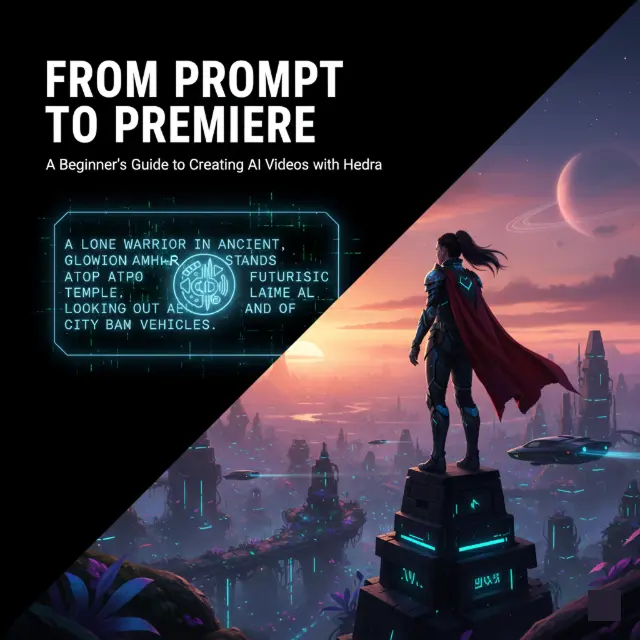
From Prompt to Premiere : A Beginner’s Guide to Creating AI Videos with Hedra
Introduction:
The barrier between a great idea and a finished video has officially disappeared. You no longer need a studio, a camera crew, or even a professional editor to create cinematic, talking-character videos. With Hedra, all you need is a spark of imagination and a few minutes. In this guide, we’ll show you how to go from a blank prompt to a high-definition "premiere" using our next-gen AI tools.
Step 1: Start with the Vision (The Prompt)
Every project starts with that initial spark. In Hedra, you’ve got two main ways to bring a character to life:
- Text-to-Video: This is where you describe the scene from scratch. Instead of just saying "a guy," try something like: "A cyberpunk explorer with neon lights reflecting off their visor, speaking in a calm, steady voice."
- Image-to-Video: If you already have a character portrait you love, just upload it. The AI handles the heavy lifting, analyzing the lighting and facial structure so it’s ready to move naturally.
- Pro Tip: Stuck? If you’re staring at a blank page, I usually lean on Hedra Elements. It lets you pick from pre-built characters and environments to get the momentum going without having to write a novel-length prompt.
Step 2: Find the Right Voice
A character only feels real once they have a voice. You’ve got a few flexible options here depending on what you’re making:
- Text-to-Speech (TTS): Just type out your script and pick a voice from the library. The AI voices these days are surprisingly expressive.
- Voice Cloning: This is a game-changer. You can upload a tiny clip of your own voice to create a digital twin that reads your script for you.
- Direct Upload: If you already have a professional voiceover or a specific song in mind, you can just drop in your MP3 or WAV file.
Step 3: The Magic of "Omnimodal" Generation
Once you hit Generate, Hedra’s Character-3 model takes over. Unlike other AI video and audio separately, Hedra’s "omnimodal" architecture does it all at once. This ensures:
- Perfect Lip-Sync: Mouth movements are perfectly timed to the phonemes in your audio.
- Natural Micro-Expressions: The AI adds realistic blinks, and brow movements that match the emotion of the speech.
- Visual Stability: No weird "morphing"—your character stays consistent from the first frame to the last.
Step 4: Polishing in the Studio
Your first attempt is usually pretty solid, but the best videos come from a little bit of tweaking. Inside Hedra Studio, you can:
- Iterate: If an expression feels slightly off, just tweak the prompt and try again.
- Edit: There’s a multi-layer timeline where you can trim your clips or layer in some sound effects.
- Upscale: When you’re ready for the world to see it, you can export in 1080p or even 4K so it looks crisp on a big screen.
Step 5: Premiere Your Creation
Congratulations! You’ve just bypassed weeks of traditional production. Now it’s time to share:
- Social Media: Export in 9:16 for TikTok and Reels.
- Business: Use your AI avatar for personalized marketing or training videos.
- Storytelling: Combine multiple clips to create an AI-driven short film.
| Step | Guide Phase | Action & Implementation |
|---|---|---|
| 01 | Character Sculpting | Upload an image or use a text prompt to define your character's visual identity within Hedra's latent space. |
| 02 | Audio Orchestration | Input your script for AI voice synthesis or upload a clean .mp3 file to drive character expressions. Lip-Sync Engine |
| 03 | Movement Synthesis | Select your animation style (Cinematic or Expressive) to generate 1:1 motion mapped to the audio track. |
| 04 | Post-Processing | Upscale the generated clip to 1080p and apply color grading to match your premiere aesthetic. 4K Enhancement |
| 05 | Final Premiere | Export your video and share it directly to your AI Video Maker portfolio for community feedback. |
Submit Your Application
Complete the form below to initiate your AI video generation project.
1. The "Magic" of Omnimodal (The Character-3 Model)
If you’ve ever used basic AI video tools, you’ve probably seen the "glitchy mouth" effect—where the audio and video feel like they’re fighting each other. That happens because most tools process sound and image separately.
- Hedra’s Character-3 model changes the game by using Unified Processing. It’s basically the first model that "thinks" about the image, text, and audio all at the exact same time.
- The result isn't just a lip-sync; it’s a full-on performance.
- Because the AI understands the emotion behind the voice, it adds those tiny human touches—like a furrowed brow, a squint of the eyes, or a subtle tilt of the head—that make the character feel actually alive.
2. Hedra Elements : No More Staring at a Blank Page
We’ve all been there: you open an AI tool, look at the empty prompt box, and have no idea where to start. Hedra Elements is basically the "easy button" for that problem.
- Instead of having to write a paragraph of complex code-like prompts, you can just dip into their Asset Library.
- You can mix and match high-quality characters, outfits, and environments to get a professional look instantly.
- The best part? It solves the "consistency" issue. If you’re building a virtual influencer or a brand mascot, you can use the same Element across different videos so your character doesn't look like a different person every time you hit generate.
3. Next-Level Audio (More Than Just a Voiceover)
The audio side of things has come a long way in 2026. It’s no longer just about "uploading a file."
- Top-Tier Voices: Hedra now has ElevenLabs and Cartesia built right into the interface. You’re getting access to the most realistic AI voices on the planet without having to jump between different websites.
- Your Digital Twin: If you want your avatar to sound exactly like you, you can just record about 30 seconds of your own voice. The Voice Cloning feature creates a digital twin that can narrate whatever you type.
- Global Reach: This is the coolest part—the lip-sync is "native" for over 140 languages. Whether your character is speaking Hindi, Spanish, or Japanese, the mouth shapes actually change to match the specific sounds of that language. It doesn't look like a dubbed movie; it looks like they were born speaking it.
4. The Studio Workflow (Multi-Clip Creation)
Move beyond 10-second clips. Explain how to build a full story:
- The Timeline: Use the Hedra Studio timeline to stitch multiple generations together.
- Motion Control: Mention the ability to transfer motion from a reference video to your character (e.g., "Make your avatar wave or dance").
- AI Upscaling: Explain how to take a 720p draft and upscale it to 4K Cinematic Quality for YouTube or professional presentations.
5. SEO & Optimization Tips for Creators
Help your readers get views on the videos they make with Hedra:
- Vertical vs. Horizontal: Use 16:9 for YouTube/Webinars and 9:16 for TikTok/Reels.
- The 3-Second Hook: Advise users to use an "expressive" prompt for the start of the video to grab attention in social feeds.
- Captions: Remind them to use the "Trendy Captions" feature, as many social media users watch videos on mute.
From Prompt to Premiere
Master the journey from a simple text idea to a cinematic masterpiece.
For high-end results, use the S.C.P. formula: Subject, Context, and Perspective. Describe your character, the lighting (e.g., "golden hour"), and the camera movement (e.g., "slow tracking shot") for clear creative direction.
Standard 5-second clips generate in 60 to 90 seconds. Full "Premiere" assembly—including upscaling and AI audio syncing—usually takes 5 to 10 minutes depending on complexity.
Yes! Use our Iterative Refinement tool. You can modify specific elements—like changing an outfit or the weather—while keeping the core motion and composition intact.
Our engine supports exports up to 4K Resolution at 24fps or 60fps. We also provide specialized aspect ratios for Cinema (21:9), Social (9:16), and Broadcast (16:9).
By utilizing spatio-temporal attention, the engine ensures limbs and facial features remain anatomically correct during fast movements, preventing the "warping" effect common in older models.
Yes. Our Image-to-Video (I2V) pipeline allows you to upload a keyframe. The AI uses that image as the "anchor" for lighting and design while your prompt dictates the motion.
Direct generation supports up to 10-second continuous clips. Using the "Extend Video" feature, you can chain segments together to create full-length cinematic scenes with consistent environments.
Use standard cinematography terms. Keywords like "Dolly Zoom," "Handheld," or "Birds-eye view" are natively understood by the Wan 2.2 engine.
Our Causal VAE architecture targets temporal consistency. By setting "Motion Smoothness" to high, the AI prioritizes frame-to-frame pixel stability to eliminate digital noise.
Ready to try Hedra?
Transform your ideas into cinematic video in seconds.